
YY-Toolkit feature guide
How do I fix 0x80070035 network path not found? How do I run SFC/DISM repair?
This page focuses on Fix 0x80070035 and SFC/DISM with one click (Win10/Win11). It expands the YY-Toolkit overview into a single-purpose guide with use cases, manual steps, and search terms for this Windows task.
Why this Windows setting is often hard to fix
This feature touches several Windows settings, services, or policies, so changing only one visible switch may not be enough.
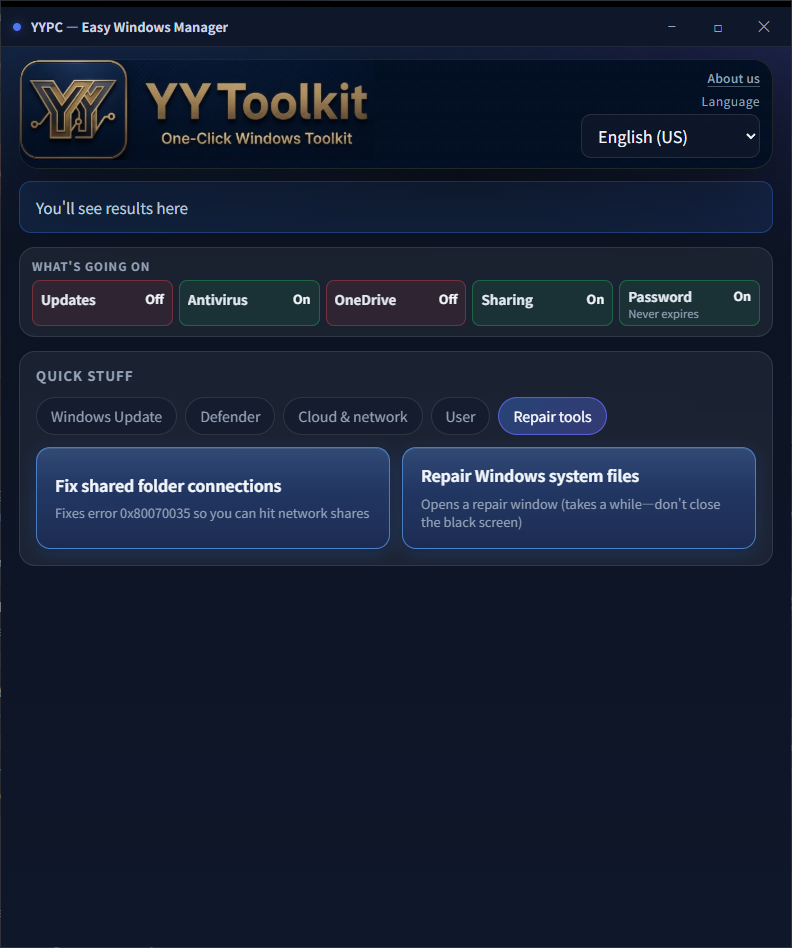
The Repair Tools tab fixes error 0x80070035 (cannot connect to shared folder) or runs SFC/DISM system file repair. Keep the console window open until finished.
With YY-Toolkit: Repair Tools tab → fix shared folder access or run SFC/DISM. Without this app, follow these manual repair steps:
How YY-Toolkit helps
The Repair Tools tab fixes error 0x80070035 (cannot connect to shared folder) or runs SFC/DISM system file repair. Keep the console window open until finished.
Fix 0x80070035 shared folder
Automatically adjusts network discovery, firewall, registry, and services to fix common causes of shared folder connection failures.
SFC/DISM repair system files
Runs SFC/DISM scan and repair for corrupted system files—may take several minutes; keep the window open until done.
Fix 0x80070035 shared folder: Automatically adjusts network discovery, firewall, registry, and services to fix common causes of shared folder connection failures.
SFC/DISM repair system files: Runs SFC/DISM scan and repair for corrupted system files—may take several minutes; keep the window open until done.
How do I fix 0x80070035 network path not found? How do I run SFC/DISM repair?
With YY-Toolkit: Repair Tools tab → fix shared folder access or run SFC/DISM. Without this app, follow these manual repair steps:
0x80070035 shared folder error
- [Shared folders—basics] Same network, Private profile; enable Network discovery and File and printer sharing; allow sharing in Windows Firewall.
- Workgroup without passwords: under All networks, turn off Password protected sharing—or sign in with the same local username/password on both PCs.
- For older gear, enable SMB 1.0: Control Panel → Programs → Turn Windows features on or off → SMB 1.0/CIFS File Sharing Support (Win10/11 often still needs the registry steps below).
- [Registry—both PCs] Run regedit as admin → HKLM\SYSTEM\CurrentControlSet\Services\LanmanWorkstation\Parameters: add DWORD AllowInsecureGuestAuth = 1 and RequireSecuritySignature = 0.
- [Registry—host PC] HKLM\SYSTEM\CurrentControlSet\Services\LanmanServer\Parameters: add DWORD RequireSecuritySignature = 0 and EnableSecuritySignature = 0 if missing.
- [Registry—interop] HKLM\SYSTEM\CurrentControlSet\Control\Lsa: set LimitBlankPasswordUse to 0 only if you need blank-password shares (less secure). Restart, then test \\COMPUTERNAME\ShareName.
- Start these services (services.msc): Function Discovery Provider Host, Function Discovery Resource Publication, SSDP Discovery, UPnP Device Host.
SFC / DISM system file repair
- Open Command Prompt as admin, run sfc /scannow, and wait until the scan finishes (can take a long time).
- If SFC cannot fix everything, run DISM first: dism /Online /Cleanup-Image /RestoreHealth, then run sfc /scannow again.
Common search questions and phrases
People often search for this feature with problem descriptions, Windows setting names, service names, or error codes.
- How do I fix 0x80070035 network path not found? How do I run SFC/DISM repair?
- 0x80070035 error code
- network path not found
- repair corrupted system files
- sfc scannow repair
- dism restorehealth
Related search keywords
These terms are grouped naturally from the page content, including Windows versions, setting names, services, and common symptoms.
- 0x80070035 error code
- network path not found
- repair corrupted system files
- sfc scannow repair
- dism restorehealth
- shared folder not accessible
- network discovery not showing computers
- smb shared folder error
- win11 system repair command
- Fix 0x80070035 and SFC/DISM with one click (Win10/Win11)
- How do I fix 0x80070035 network path not found? How do I run SFC/DISM repair?
- Fix 0x80070035 shared folder
- SFC/DISM repair system files
- Windows 10
- Windows 11
- Win10
- Win11
- YY-Toolkit
FAQ
How do I fix 0x80070035 network path not found? How do I run SFC/DISM repair?
The Repair Tools tab fixes error 0x80070035 (cannot connect to shared folder) or runs SFC/DISM system file repair. Keep the console window open until finished. Fix 0x80070035 shared folder: Automatically adjusts network discovery, firewall, registry, and services to fix common causes of shared folder connection failures. SFC/DISM repair system files: Runs SFC/DISM scan and repair for corrupted system files—may take several minutes; keep the window open until done. These actions may change Windows system, network, update, or security settings. Use them only when you understand the impact. If this PC is managed by a company or IT administrator, check the internal policy before changing these settings.
0x80070035 error code
The Repair Tools tab fixes error 0x80070035 (cannot connect to shared folder) or runs SFC/DISM system file repair. Keep the console window open until finished. Fix 0x80070035 shared folder: Automatically adjusts network discovery, firewall, registry, and services to fix common causes of shared folder connection failures. SFC/DISM repair system files: Runs SFC/DISM scan and repair for corrupted system files—may take several minutes; keep the window open until done. These actions may change Windows system, network, update, or security settings. Use them only when you understand the impact. If this PC is managed by a company or IT administrator, check the internal policy before changing these settings.
network path not found
The Repair Tools tab fixes error 0x80070035 (cannot connect to shared folder) or runs SFC/DISM system file repair. Keep the console window open until finished. Fix 0x80070035 shared folder: Automatically adjusts network discovery, firewall, registry, and services to fix common causes of shared folder connection failures. SFC/DISM repair system files: Runs SFC/DISM scan and repair for corrupted system files—may take several minutes; keep the window open until done. These actions may change Windows system, network, update, or security settings. Use them only when you understand the impact. If this PC is managed by a company or IT administrator, check the internal policy before changing these settings.
repair corrupted system files
The Repair Tools tab fixes error 0x80070035 (cannot connect to shared folder) or runs SFC/DISM system file repair. Keep the console window open until finished. Fix 0x80070035 shared folder: Automatically adjusts network discovery, firewall, registry, and services to fix common causes of shared folder connection failures. SFC/DISM repair system files: Runs SFC/DISM scan and repair for corrupted system files—may take several minutes; keep the window open until done. These actions may change Windows system, network, update, or security settings. Use them only when you understand the impact. If this PC is managed by a company or IT administrator, check the internal policy before changing these settings.
Fix 0x80070035 and SFC/DISM with one click (Win10/Win11) — Before you change it
These actions may change Windows system, network, update, or security settings. Use them only when you understand the impact. If this PC is managed by a company or IT administrator, check the internal policy before changing these settings.
Fix 0x80070035 and SFC/DISM with one click (Win10/Win11) — Download YY-Toolkit
If you want to handle this task with the tool, return to the full YY-Toolkit overview page. The other Windows maintenance features are listed there too.
Before you change it
- These actions may change Windows system, network, update, or security settings. Use them only when you understand the impact.
- If this PC is managed by a company or IT administrator, check the internal policy before changing these settings.
Related Windows names
You can combine these terms with Win10, Win11, Windows 10, Windows 11, or YY-Toolkit when searching.
If you came from Google, read the manual steps first, then return to the full overview page to download the tool.
Download YY-Toolkit
If you want to handle this task with the tool, return to the full YY-Toolkit overview page. The other Windows maintenance features are listed there too.