
YY-Toolkit feature guide
How do I permanently disable Windows Defender on Win11/Win10?
This page focuses on Disable antivirus with one click (Win10/Win11). It expands the YY-Toolkit overview into a single-purpose guide with use cases, manual steps, and search terms for this Windows task.
Why this Windows setting is often hard to fix
This feature touches several Windows settings, services, or policies, so changing only one visible switch may not be enough.
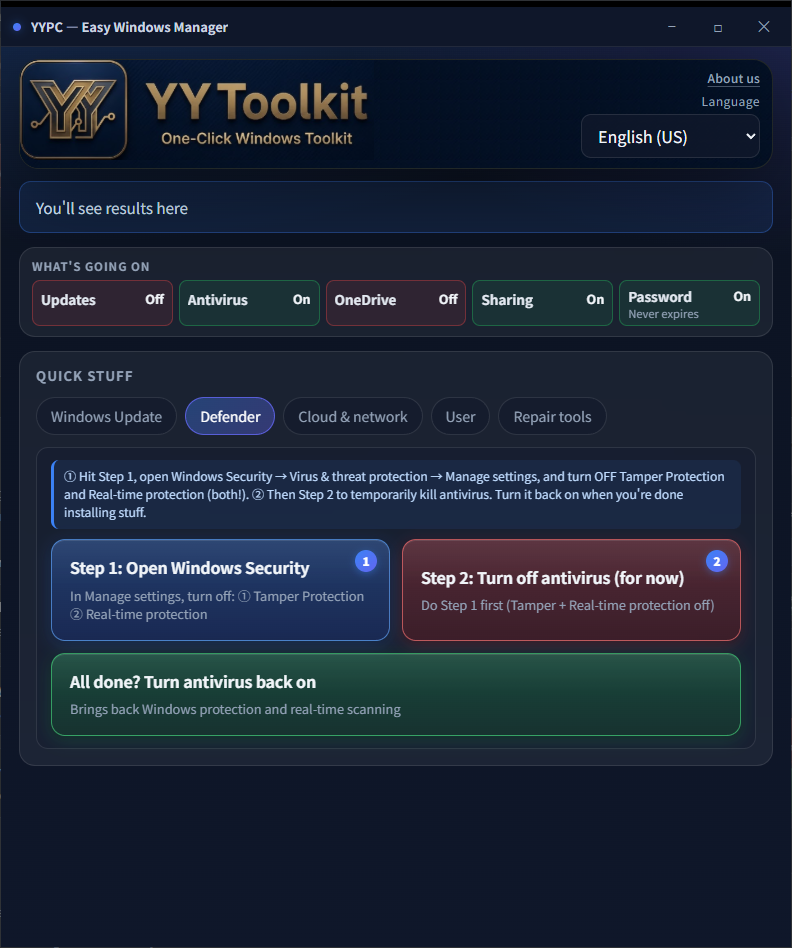
The Antivirus tab guides you through turning off Tamper Protection, then fully disables Windows Defender (Windows Security) toggles and background services—not the built-in pause-for-a-few-days mode. Restore anytime. Use only when needed (e.g. installing specific software) and turn protection back on afterward.
With YY-Toolkit: Antivirus tab → follow the guide to turn off Tamper Protection → press Disable antivirus (stays off until you restore). Without this app, follow these manual steps:
How YY-Toolkit helps
The Antivirus tab guides you through turning off Tamper Protection, then fully disables Windows Defender (Windows Security) toggles and background services—not the built-in pause-for-a-few-days mode. Restore anytime. Use only when needed (e.g. installing specific software) and turn protection back on afterward.
Open Windows Security
Open Windows Security directly, turn off Tamper Protection and real-time protection on screen, then disable Defender.
Disable antivirus
Fully turns off all protection toggles and background services; stays disabled until you restore.
Restore antivirus protection
Turn Defender and real-time scanning back on—recommended as soon as your install or setup is done.
Open Windows Security: Open Windows Security directly, turn off Tamper Protection and real-time protection on screen, then disable Defender.
Disable antivirus: Fully turns off all protection toggles and background services; stays disabled until you restore.
Restore antivirus protection: Turn Defender and real-time scanning back on—recommended as soon as your install or setup is done.
How do I permanently disable Windows Defender on Win11/Win10?
With YY-Toolkit: Antivirus tab → follow the guide to turn off Tamper Protection → press Disable antivirus (stays off until you restore). Without this app, follow these manual steps:
- Open Windows Security → Virus & threat protection → Manage settings.
- Turn off Tamper Protection first (confirm when prompted; other toggles may stay locked until you do).
- On the same page, turn off every protection toggle: Real-time protection, Cloud-delivered protection, Automatic sample submission, and similar items (names vary by Windows version).
- Those toggles alone may not stop background scans. For a full shutdown like this app: run services.msc as admin, stop and set to Disabled: Microsoft Defender Antivirus Service (WinDefend), Microsoft Defender Antivirus Network Inspection Service (WdNisSvc), and on Windows 11 Microsoft Defender Core Service.
- On Pro/Enterprise, you can also use Group Policy: Computer Configuration → Administrative Templates → Windows Components → Microsoft Defender Antivirus → Turn off Microsoft Defender Antivirus → Enabled (Home editions usually skip this).
- After installing your software, restore in reverse: set services back to Automatic and start them, then re-enable all toggles and Tamper Protection in Windows Security.
Common search questions and phrases
People often search for this feature with problem descriptions, Windows setting names, service names, or error codes.
- How do I permanently disable Windows Defender on Win11/Win10?
- disable windows defender permanently
- disable virus and threat protection
- turn off built-in windows antivirus
- Win11 disable antivirus
- defender turns back on after disable
Related search keywords
These terms are grouped naturally from the page content, including Windows versions, setting names, services, and common symptoms.
- disable windows defender permanently
- disable virus and threat protection
- turn off built-in windows antivirus
- Win11 disable antivirus
- defender turns back on after disable
- disable WinDefend service
- Disable antivirus with one click (Win10/Win11)
- How do I permanently disable Windows Defender on Win11/Win10?
- Open Windows Security
- Disable antivirus
- Restore antivirus protection
- Windows 10
- Windows 11
- Win10
- Win11
- YY-Toolkit
FAQ
How do I permanently disable Windows Defender on Win11/Win10?
The Antivirus tab guides you through turning off Tamper Protection, then fully disables Windows Defender (Windows Security) toggles and background services—not the built-in pause-for-a-few-days mode. Restore anytime. Use only when needed (e.g. installing specific software) and turn protection back on afterward. Open Windows Security: Open Windows Security directly, turn off Tamper Protection and real-time protection on screen, then disable Defender. Disable antivirus: Fully turns off all protection toggles and background services; stays disabled until you restore. Restore antivirus protection: Turn Defender and real-time scanning back on—recommended as soon as your install or setup is done. These actions may change Windows system, network, update, or security settings. Use them only when you understand the impact. If this PC is managed by a company or IT administrator, check the internal policy before changing these settings.
disable windows defender permanently
The Antivirus tab guides you through turning off Tamper Protection, then fully disables Windows Defender (Windows Security) toggles and background services—not the built-in pause-for-a-few-days mode. Restore anytime. Use only when needed (e.g. installing specific software) and turn protection back on afterward. Open Windows Security: Open Windows Security directly, turn off Tamper Protection and real-time protection on screen, then disable Defender. Disable antivirus: Fully turns off all protection toggles and background services; stays disabled until you restore. Restore antivirus protection: Turn Defender and real-time scanning back on—recommended as soon as your install or setup is done. These actions may change Windows system, network, update, or security settings. Use them only when you understand the impact. If this PC is managed by a company or IT administrator, check the internal policy before changing these settings.
disable virus and threat protection
The Antivirus tab guides you through turning off Tamper Protection, then fully disables Windows Defender (Windows Security) toggles and background services—not the built-in pause-for-a-few-days mode. Restore anytime. Use only when needed (e.g. installing specific software) and turn protection back on afterward. Open Windows Security: Open Windows Security directly, turn off Tamper Protection and real-time protection on screen, then disable Defender. Disable antivirus: Fully turns off all protection toggles and background services; stays disabled until you restore. Restore antivirus protection: Turn Defender and real-time scanning back on—recommended as soon as your install or setup is done. These actions may change Windows system, network, update, or security settings. Use them only when you understand the impact. If this PC is managed by a company or IT administrator, check the internal policy before changing these settings.
turn off built-in windows antivirus
The Antivirus tab guides you through turning off Tamper Protection, then fully disables Windows Defender (Windows Security) toggles and background services—not the built-in pause-for-a-few-days mode. Restore anytime. Use only when needed (e.g. installing specific software) and turn protection back on afterward. Open Windows Security: Open Windows Security directly, turn off Tamper Protection and real-time protection on screen, then disable Defender. Disable antivirus: Fully turns off all protection toggles and background services; stays disabled until you restore. Restore antivirus protection: Turn Defender and real-time scanning back on—recommended as soon as your install or setup is done. These actions may change Windows system, network, update, or security settings. Use them only when you understand the impact. If this PC is managed by a company or IT administrator, check the internal policy before changing these settings.
Disable antivirus with one click (Win10/Win11) — Before you change it
These actions may change Windows system, network, update, or security settings. Use them only when you understand the impact. If this PC is managed by a company or IT administrator, check the internal policy before changing these settings.
Disable antivirus with one click (Win10/Win11) — Download YY-Toolkit
If you want to handle this task with the tool, return to the full YY-Toolkit overview page. The other Windows maintenance features are listed there too.
Before you change it
- These actions may change Windows system, network, update, or security settings. Use them only when you understand the impact.
- If this PC is managed by a company or IT administrator, check the internal policy before changing these settings.
Related Windows names
You can combine these terms with Win10, Win11, Windows 10, Windows 11, or YY-Toolkit when searching.
If you came from Google, read the manual steps first, then return to the full overview page to download the tool.
Download YY-Toolkit
If you want to handle this task with the tool, return to the full YY-Toolkit overview page. The other Windows maintenance features are listed there too.